One of the elements that most users ask is a client that allows them to use WhatsApp from the computer similarly to as allow rivals line-up, Viber and Telegram. After a long wait, the platform managers finally launched a platform through which we can use the Messenger client from the computer that, although it is not what everyone expected, at least it works and fulfills, in part, the needs of the users.
Both the official client of WhatsApp for Windows and Mac as a WhatsApp Web rely on constantly mobile, which must maintain connectivity with your computer and keep on a list computers that can make use of it.
For safety, the best is to avoid log in public computer since doing so, anyone could access our account and have control over it, messages and documents sent. To prevent this from happening, it is also advisable to remove from our mobile, from time to time, the list of all the computers that we have allowed our WhatsApp account to access.
In this article we will see how to connect use WhatsApp website from your computer and how you can block access to computers that we have allowed to access previously so if you want to reconnect, they have to go through the authentication process described in step.
How to log into WhatsApp Web from your computer
As we have said, there are two platforms to control WhatsApp from our computer, although both operate as:
WhatsApp Web access from your browser.
WhatsApp for Windows, a native application for Windows.
Both applications work equal in terms of how to log in and that both depend on the mobile to operate, so the process will be the same use the native version of Windows and the browser.
When we try to access the platform, the computer will appear a QR code, which we must scan with our smartphone so that both teams are linked. So, open the messaging in our device client and, since the chat section, open the options menu to see the “WhatsApp Web“.

Click and we will be shown a list of all the computers that have logged in (along with the location and the date in which have done so) and, at the top, a button “+“.

Click on this button and opens us the camera of your mobile phone with a code scanner. The only thing we have to do is focus on the QR code that appears on our computer so that it recognizes it, read it, and link the computer.

Ready. After a few seconds you will see how WhatsApp opens on your computer which, although it depends on the mobile to operate, will allow us to both access all conversations how to use the keyboard to type more comfortably.
How to view the computers that can connect to WhatsApp Web and remove your permission
As we have said, it is customer’s own mobile who is in charge of managing WhatsApp Web access and allow or deny access to the different network computers. Therefore, the client saves a list of computers that have made the verification process previously so that, when they attempt to connect, they can perform the process automatically.
To control this, we must open our WhatsApp in our smartphone, open the options menu and select WhatsApp Web, just like if you were to add a new computer to the list. At the bottom we will see a button called “close all sessions“.
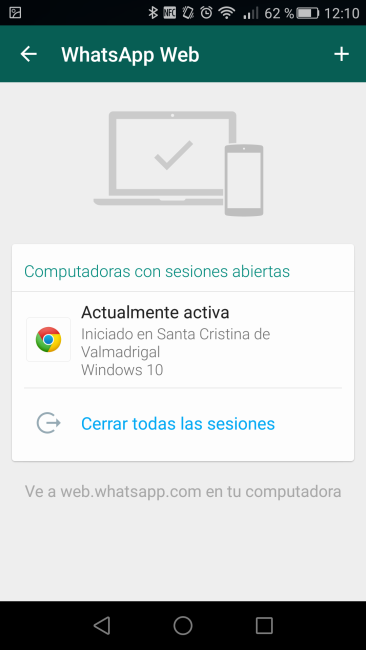
Click on it and the system will automatically shut off all active sessions. So we make sure that no unauthorized users can make use of our remotely WhatsApp account simply by having previously started on a public computer or someone else’s.
The article how to connect to WhatsApp Web and control computers that have logged was published in MovilZona.